
Chewy’s a fantastic pet supplies store, delivering everything your furry (or feathery!) friend needs right to your doorstep. But what happens if you’ve moved, switched to a different pet food brand, or simply don’t need pet supplies anymore? An inactive Chewy account might seem harmless, but it could leave your personal information lingering on their servers. Here’s the good news: deleting your Chewy account is a straightforward process, and this Techy Manual blog will guide you through it step-by-step. We’ll show you how to remove your account completely, ensuring your information is secure and you’re not hanging onto a login you no longer need. Let’s get started and give your Chewy account a proper goodbye.
Things To Consider Before Deleting Your Chewy Account
Before you say farewell to your Chewy account, there are a few quick things to tackle to make sure you don’t miss anything important:
Download Order History (Optional):
If you ever need to reference past purchases, you can download your order history from Chewy. This will give you a record of what you’ve ordered and when.
Cancel Autoship Subscriptions:
Do you have any automatic deliveries set up (Autoship)? These are great for keeping your pet stocked up, but if you’re deleting your account, you’ll want to cancel them to avoid any future charges.
Use Up Store Credit:
Do you have any remaining store credit in your account? Chewy won’t give you cash back for unused credit, so why not treat your furry friend to a new toy or some delicious treats before you delete your account?
Consider Privacy:
Leaving an inactive account with Chewy might not seem like a big deal, but it does mean your personal information is still on their servers. Deleting your account ensures your information is removed, giving you some extra peace of mind.
What Happens When I Delete My Account?
Deleting your Chewy account means giving your pet supply deliveries a permanent paws-down. Here’s what you need to know before hitting delete:
No More Chewy:
Once your account is deleted, you won’t be able to access it anymore. This means no more placing orders, managing your Autoship subscriptions, or browsing your order history.
Information Farewell:
Deleting your account removes your personal information from Chewy’s system. This includes your name, address, email, and any past payment methods.
Store Credit Sayonara:
Any unused store credit in your account disappears with your account. So, if you have some leftover credit, spend it on a fun treat for your furry friend before hitting delete!
Important to Remember:
- While your order history won’t be available in your account anymore, Chewy might allow you to download it before deletion. This way, you can keep a record of past purchases if needed.
- If you have any automatic deliveries set up (Autoship), be sure to cancel them before deleting your account. This stops future charges and ensures you don’t receive unwanted pet supplies.
- There’s no going back after you delete your account. Chewy won’t be able to recover it, so make sure this is what you really want to do.
By understanding what happens when you delete your Chewy account, you can make an informed decision. Remember, take care of any loose ends like downloading your order history or canceling Autoship before saying your final goodbye.
Follow Step-By-Step Process To Delete Chewy Account
From Desktop Web:
- First, go to the website and log into your Chewy account.
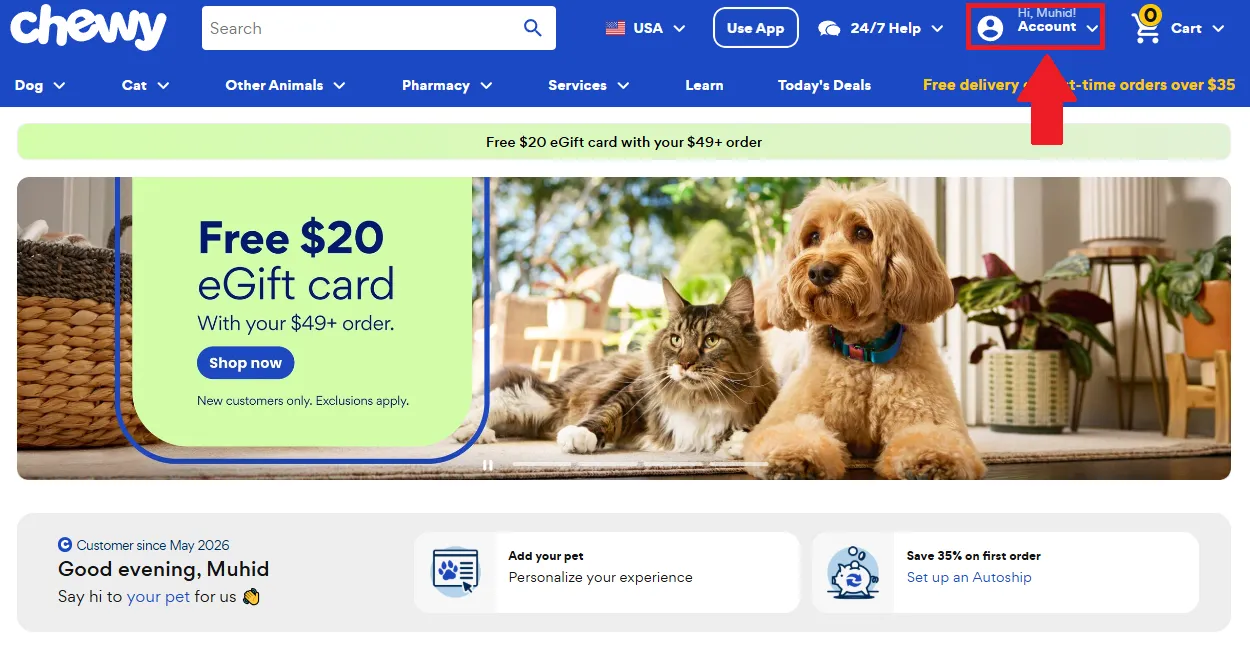
- Once logged in, go to your account. You can find it either by clicking your profile picture or the account option in the top right of the website.

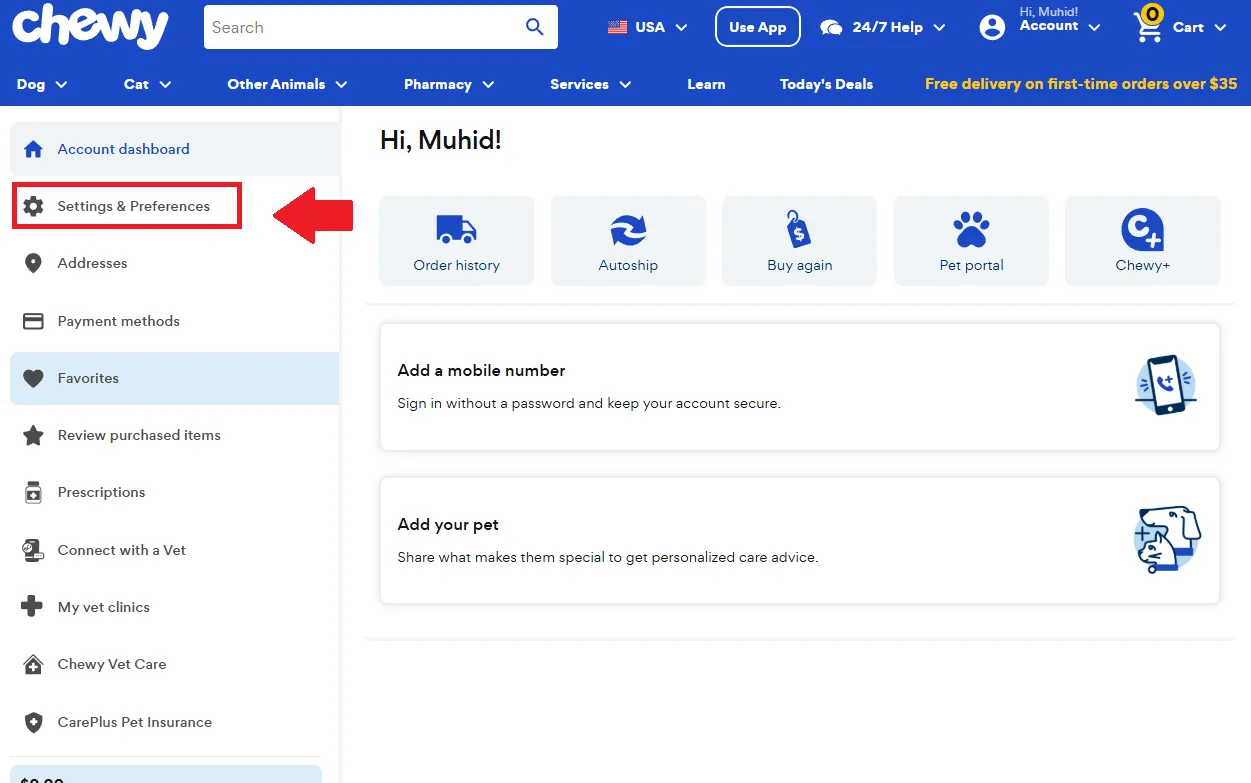
- Now, go to the Settings & Preferences.
- In account settings, scroll to the end and look for Privacy Preferences.

- In this section you will find the option to Delete Your Information and Account at the very end. Click on it for deleting your account.

- At this point you will likely be asked for confirmation to delete your account. Confirm your choice.
- After clicking “Delete account” and confirming your decision, Chewy will likely send you a confirmation email. This email acts as a receipt, letting you know your account deletion request has been received and your account is on its way to being permanently removed.
From Mobile App:
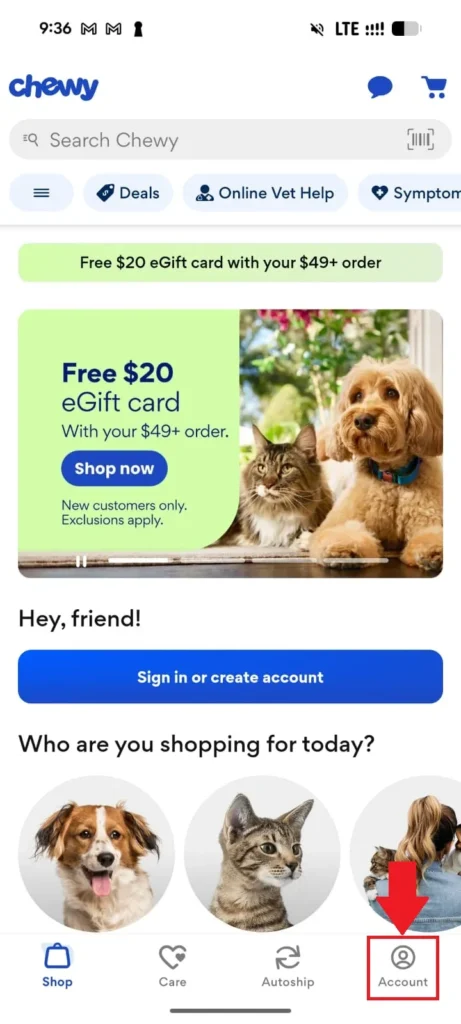
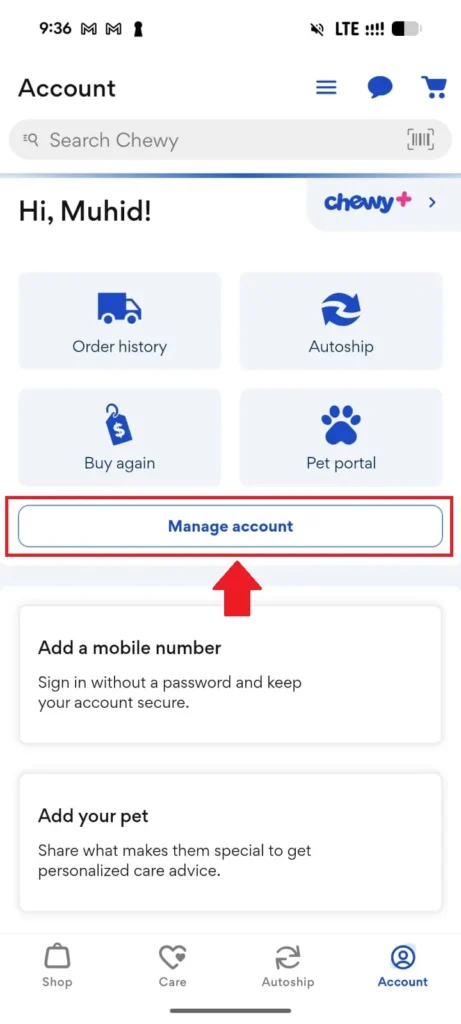
- Open the Chewy app and tap the “Account” icon at the bottom right corner of the screen.
- Tap “Manage Account” to access your account management options.
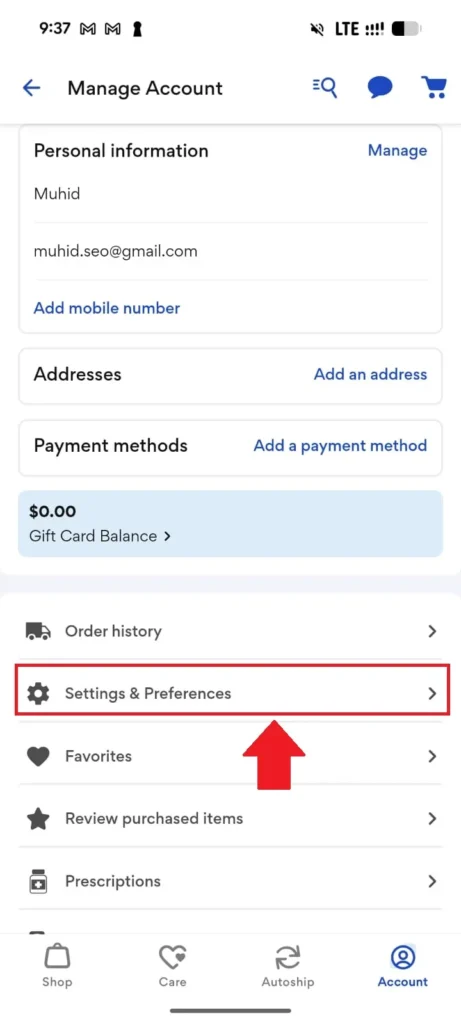
- Scroll down and tap “Settings & Preferences.”
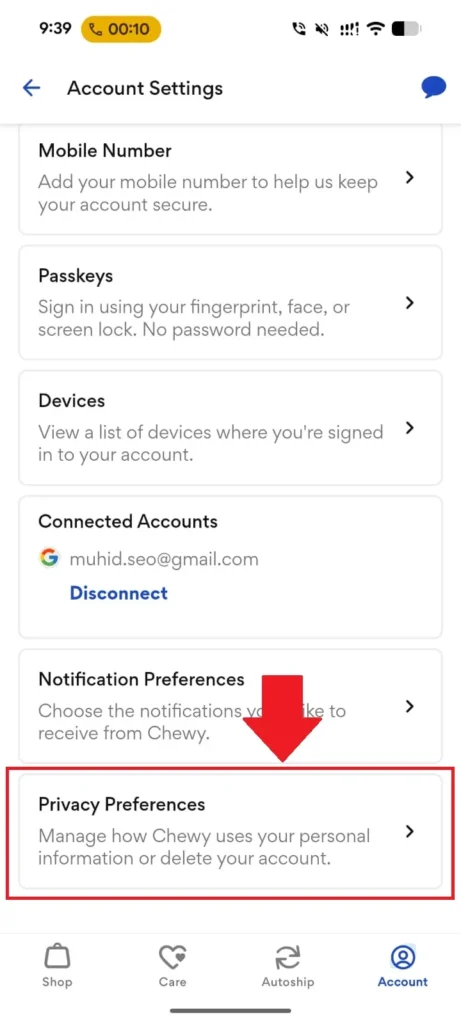
- Tap “Privacy Preferences” at the bottom of the Account Settings page.
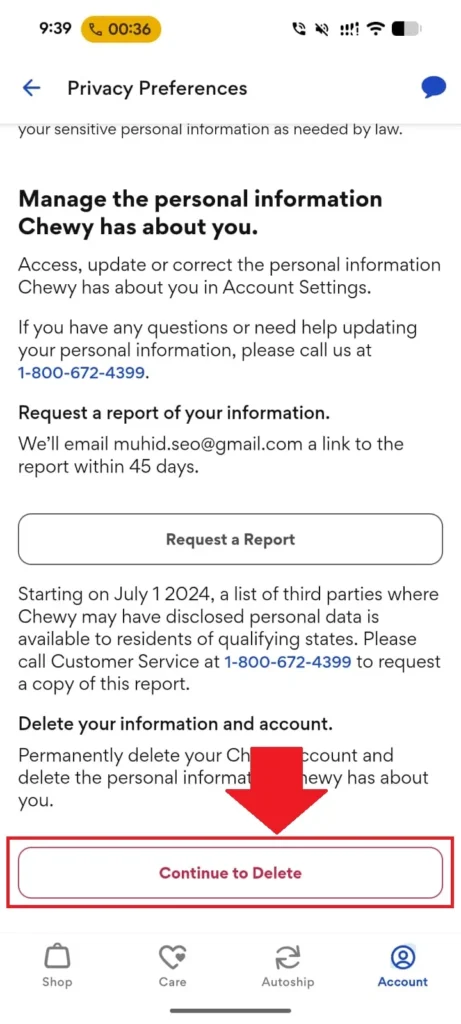
- Scroll down and tap “Continue to Delete” under the “Delete your information and account” section.
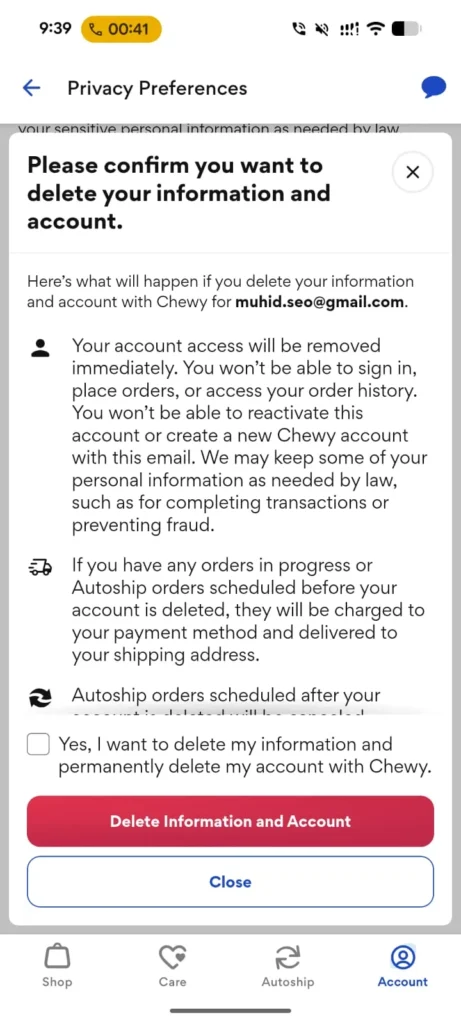
- A confirmation popup will appear. Read the terms, check the box that says “Yes, I want to delete my information and permanently delete my account with Chewy,” then tap “Delete Information and Account.”
Deleting The Chewy Account Of A Deceased Family Member
You can request account deletion by emailing service@chewy.com or calling 1-800-672-4399. In your email, include your full name, the email address linked to your account, and a clear request to permanently delete your account and personal data. If you call, have your account email and a recent order number ready for identity verification. Phone is the faster option — a live agent can initiate the deletion immediately, while email requests are typically processed within 45 days.
Deactivate Chewy Account
Unfortunately, if Chewy’s website is unavailable due to technical difficulties or an outage, you won’t be able to deactivate your account at that moment. Deactivation requires accessing your account and navigating their system, which won’t be possible until Chewy’s website is back up and running.
The best course of action is to wait until Chewy’s website becomes available again. Once it’s back online, you can follow the steps outlined in a previous response to deactivate your account.
Restore account incase of change of mind
No, reactivating your Chewy account after deletion isn’t possible. Chewy permanently removes your information and access upon deletion. Consider downloading your order history (if needed) and using any store credit before saying goodbye, as these won’t be recoverable either.
Conclusion
Waving goodbye to your Chewy account can be a simple process, but with careful planning, you can ensure a smooth and secure experience. This guide has equipped you with the knowledge to tackle everything from downloading order history to understanding what information is removed during deletion. Remember, taking care of loose ends like canceling Autoship subscriptions and using store credit can save you time and money. Whether you’re switching pet food brands or simply no longer need pet supplies delivered, this guide has empowered you to make an informed decision and delete your Chewy account with confidence.
Frequently Asked Questions (FAQs):
Is there a waiting period after Chewy account deletion?
No, there typically isn’t a waiting period after you delete your Chewy account. Chewy is known for processing account deletion requests promptly. Once you confirm your deletion and receive a confirmation email (if they send one), your account should be removed from their system relatively quickly.
How do I delete Autoship Chewy?
- Through the Chewy Website:
- Log in to your Chewy account on their website .
- In the top right corner you will find the My Account option. Under this click on Manage Autoship.
- Locate the specific Autoship you would like to cancel.
- You’ll see Cancel Autoship next to order details. Click on that.
How do I unsubscribe from Chewy emails?
Chewy emails often have an “unsubscribe” link at the bottom. Clicking it lets you choose what emails to get (like order updates) or stop them completely.