

If you’re looking to delete your Asana account, this blog is here to guide you through the process in a simple, step-by-step manner. Asana is a widely used project management platform that helps individuals and teams coordinate tasks, manage projects, and stay organized. While it’s a powerful tool for productivity, users may eventually decide to leave the platform for various reasons—such as switching to a different tool, reducing digital clutter, or addressing privacy concerns. In this Techy Manual guide, we’ll provide a brief overview of Asana’s core features to give context, explain why someone might want to delete their account, and then walk you through the exact steps needed to do so. Whether you’re closing an unused account or making a shift in your workflow, this guide will help you handle the process confidently and with clarity.
Things To Consider Before Deleting Your Asana Account
- Team Access: If you’re part of a team or organization, your departure might affect ongoing projects or task assignments.
- Admin Roles: If you’re an admin, make sure to transfer ownership or admin rights to another member before deletion.
- Subscription Plan: Cancel any paid subscriptions to avoid future charges before deleting your account.
- Backup: Consider exporting important data or reports if you might need them later.
- Workspace vs. Account Deletion: Deleting your account does not necessarily delete the workspace; understand what you’re removing.
- Third-Party Integrations: Disconnect any apps or integrations linked to your Asana account.
- Alternative Solutions: If you’re facing issues, explore Asana’s support or help center for potential solutions before taking final action.
What Happens When I Delete My Account?
- Permanent Loss of Access: You will no longer be able to log in or access any data associated with your Asana account.
- Tasks and Projects Remain: Tasks and projects you created may still exist in shared workspaces, but your name will appear as a “Former Member.”
- No Recovery Option: Account deletion is permanent—once deleted, your account and personal data cannot be restored.
- Email Disassociation: Your email address will be removed from Asana’s system, allowing you to use it to create a new account in the future if desired.
- Workspace Memberships Removed: You will be removed from all teams, projects, and workspaces you were a part of.
- Billing Impact: If you are the billing owner, your account deletion may affect active subscriptions—ensure billing responsibilities are transferred.
Follow Step-By-Step Process To Delete Asana Account
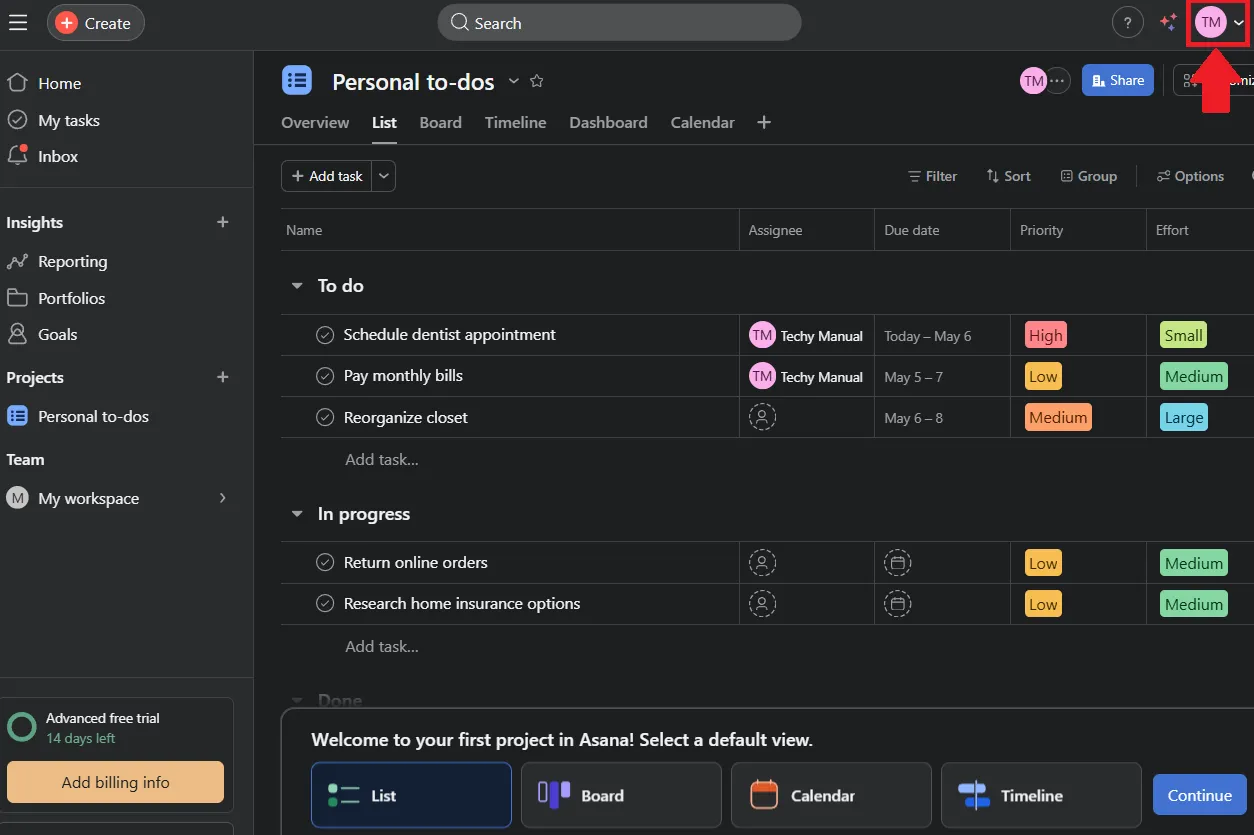
- In the top-right corner of your Asana dashboard, click on your profile avatar (the circular icon with your initials).
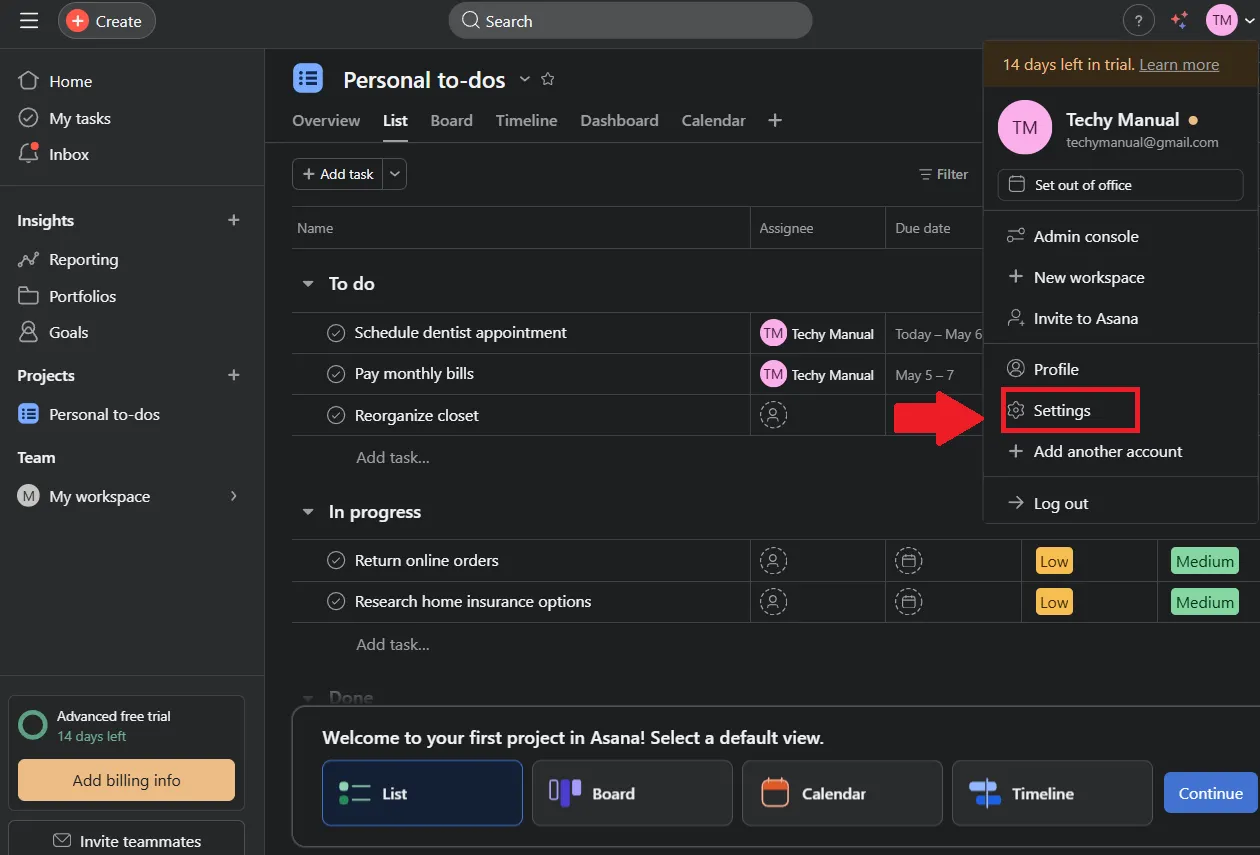
- A dropdown menu will appear. Click on Settings from the list of options.
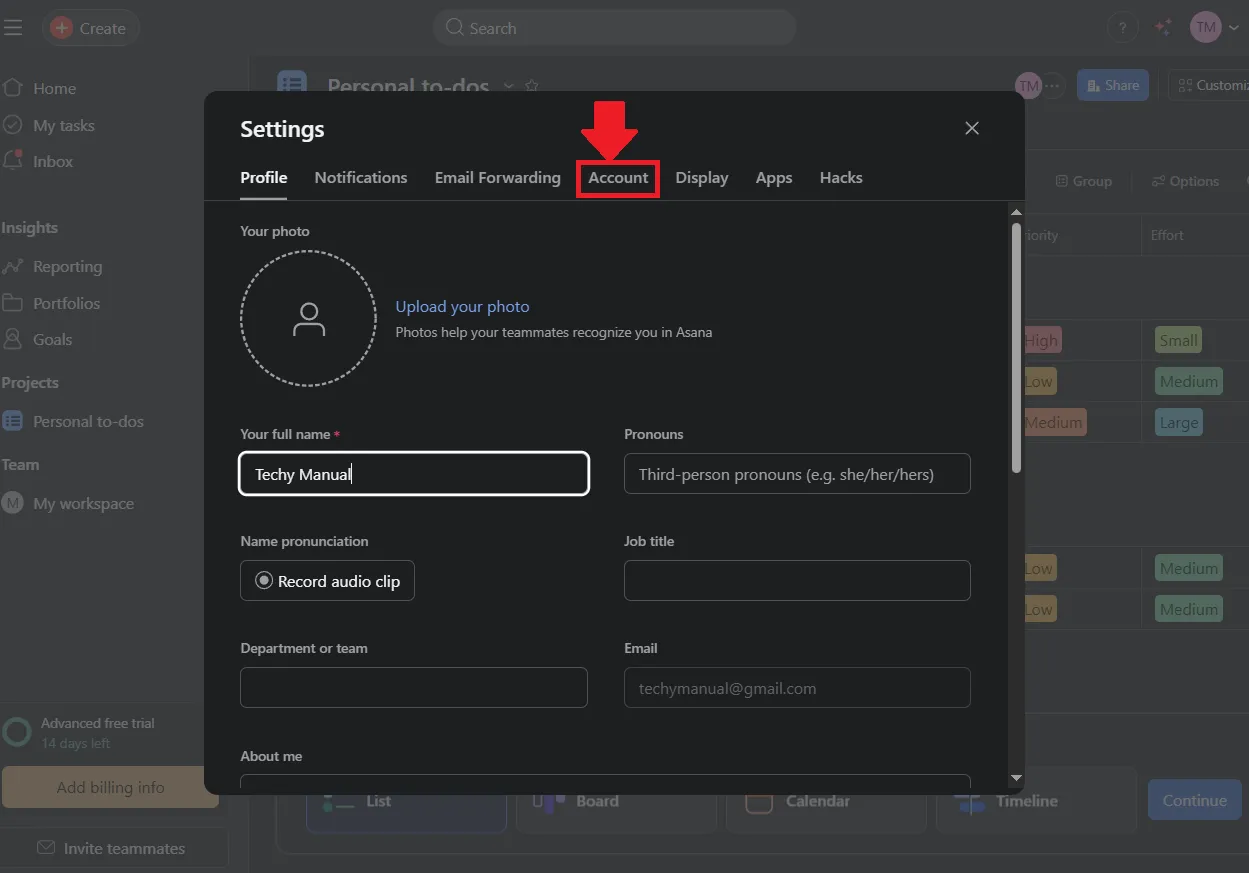
- Inside the Settings modal, you’ll land on the Profile tab by default. Click on the Account tab at the top.
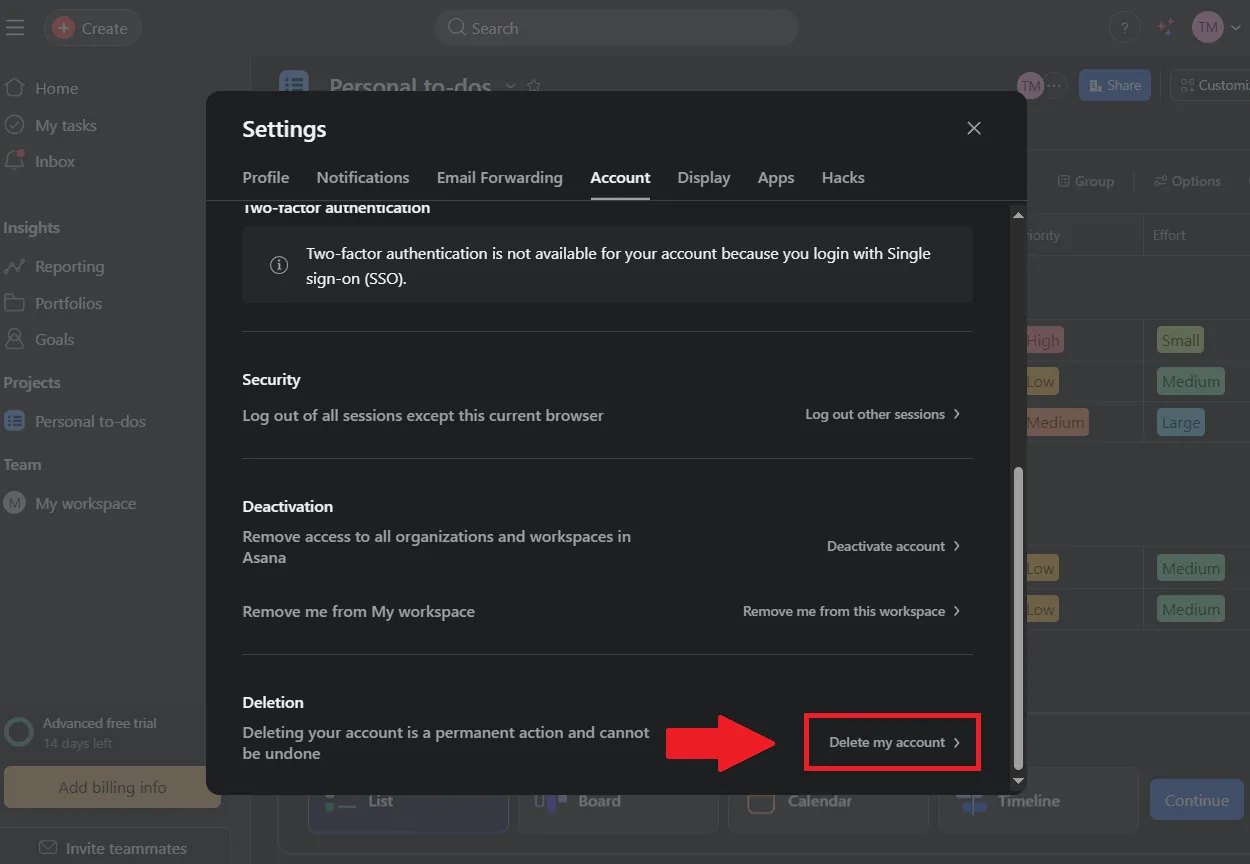
- Scroll down to the Deletion section. You’ll see the warning: “Deleting your account is a permanent action and cannot be undone.” Click Delete my account.
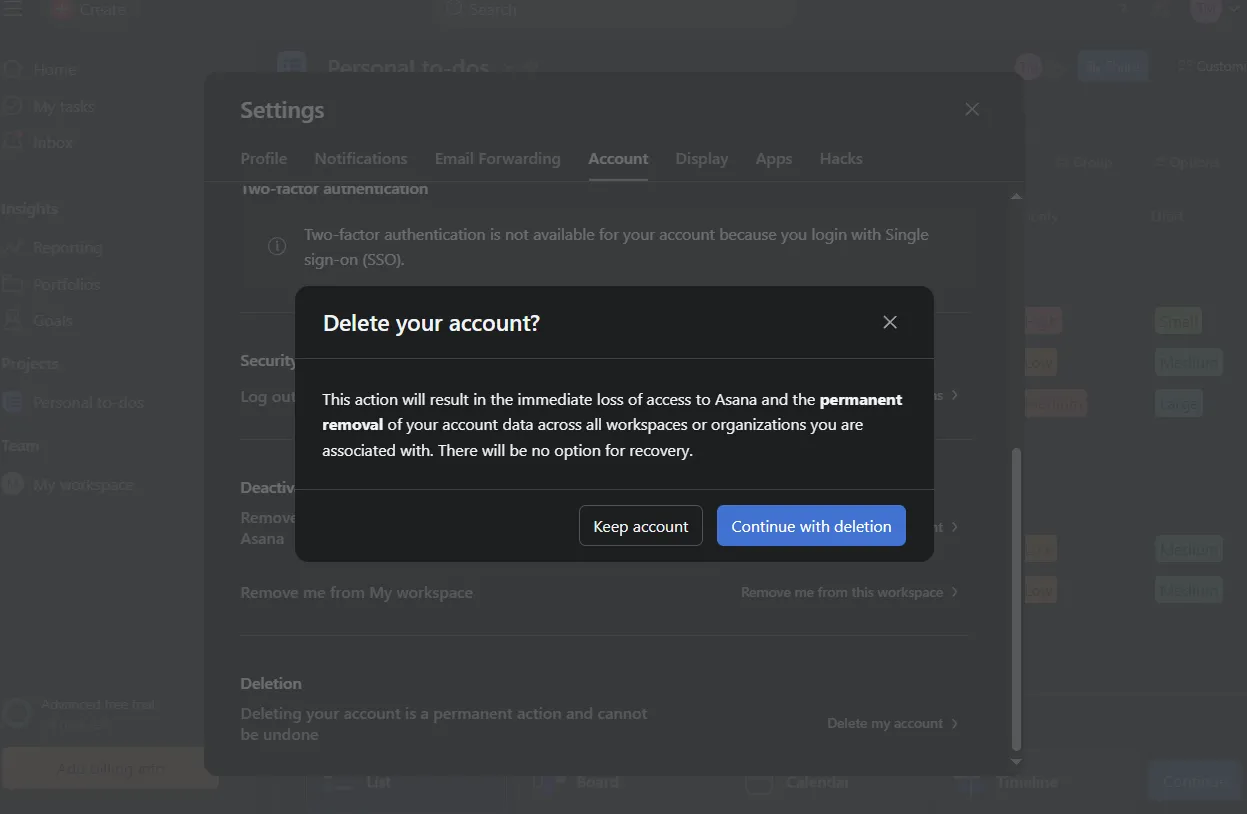
- Asana will show warning stating that this action will result in the immediate loss of access and permanent removal of all your data across every workspace. then click Continue with deletion.
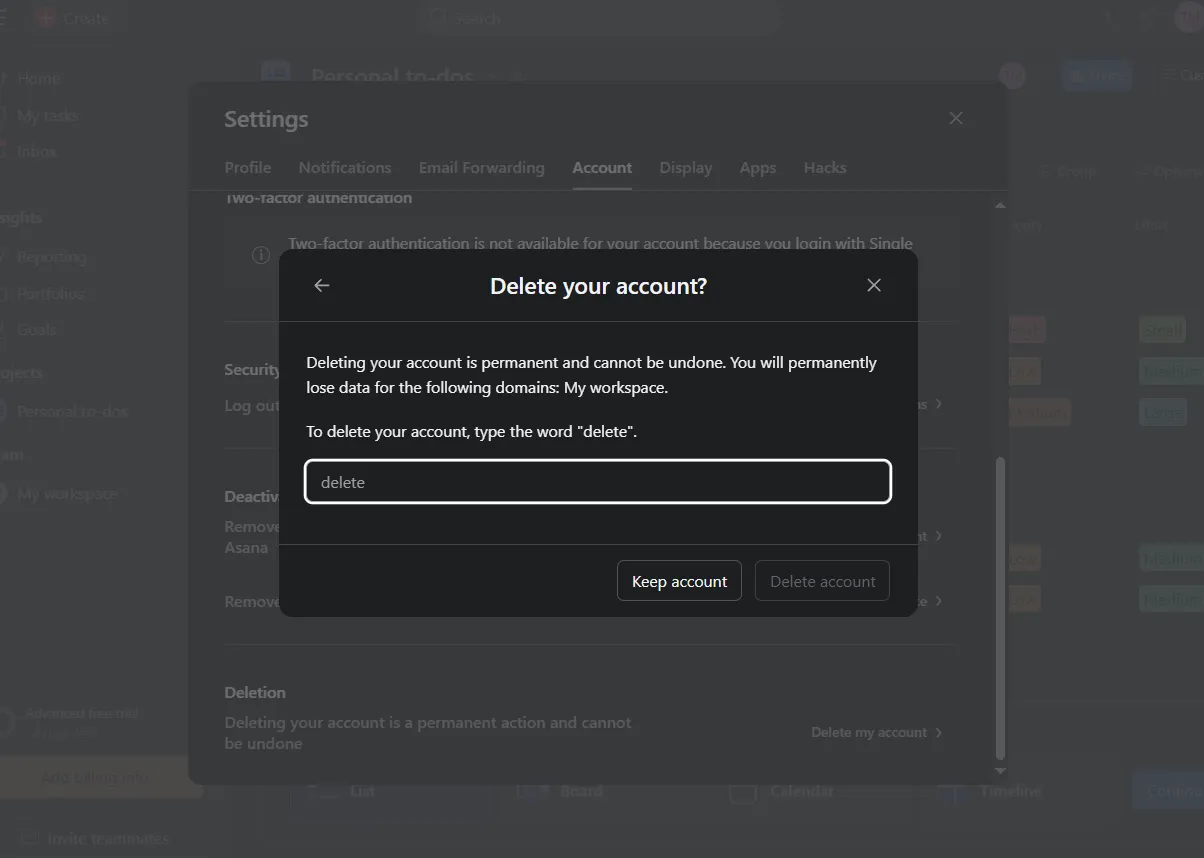
- A confirmation prompt will appear. Type the word delete in the text field to confirm, then click Delete account.
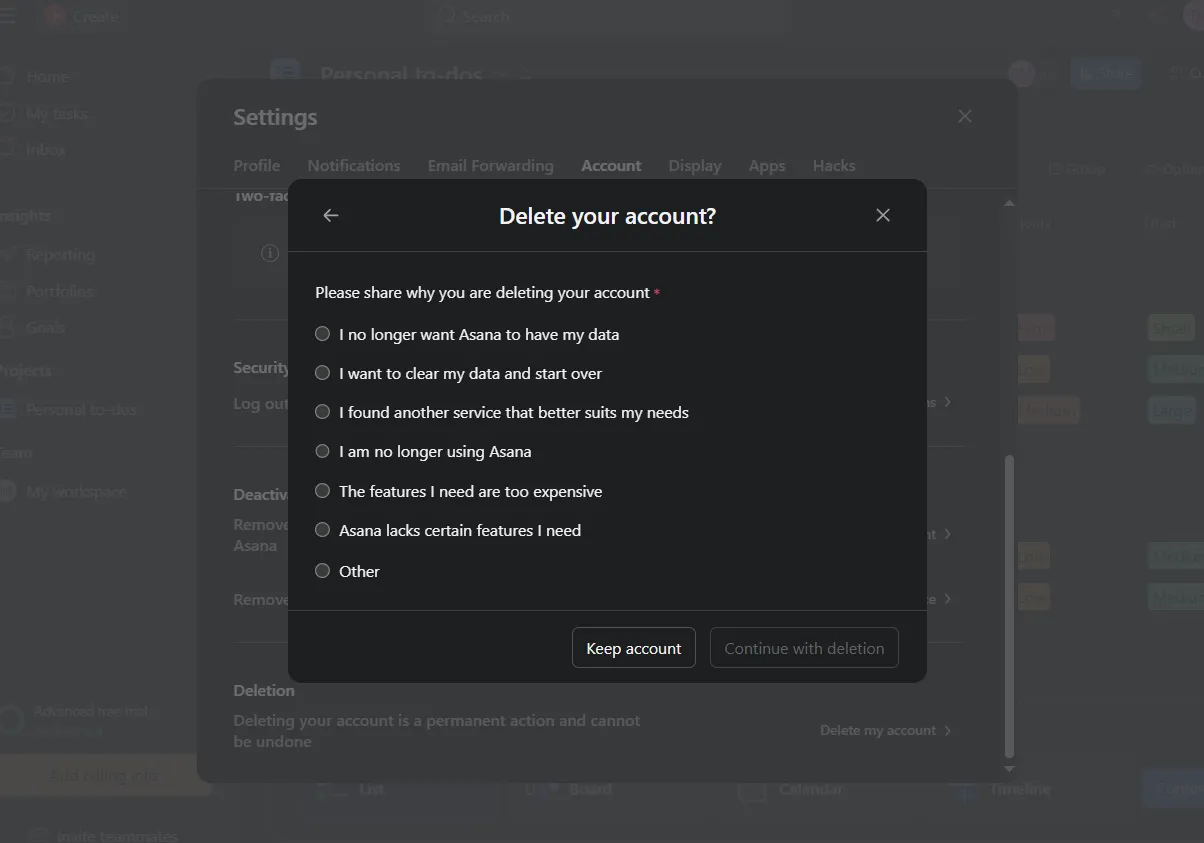
- Asana will ask why you’re leaving. Select the option that applies to you — such as “I no longer want Asana to have my data” or “I found another service that better suits my needs” — Click Continue with deletion to finalize.
Alternative Way To Delete Your Asana Account
If you can’t delete your Asana account through Settings, there are two alternatives. You can use Asana’s live chat support at help.asana.com/s/get-support — open the chatbot, describe your issue, and submit a deletion ticket. Or you can email Asana directly at mobile-feedback@support.asana.com with your full name, registered email, and a clear request for permanent account deletion. Support is available Monday to Friday, 8 a.m. to 7 p.m. EST, and typically responds within 1–2 business days.
Deactivate Asana Account
- In the top-right corner of your Asana dashboard, click on your profile avatar (the circular icon with your initials).
- A dropdown menu will appear. Click Settings from the list of options.
- Inside the Settings modal, you’ll land on the Profile tab by default. Click the Account tab at the top to switch to account settings.
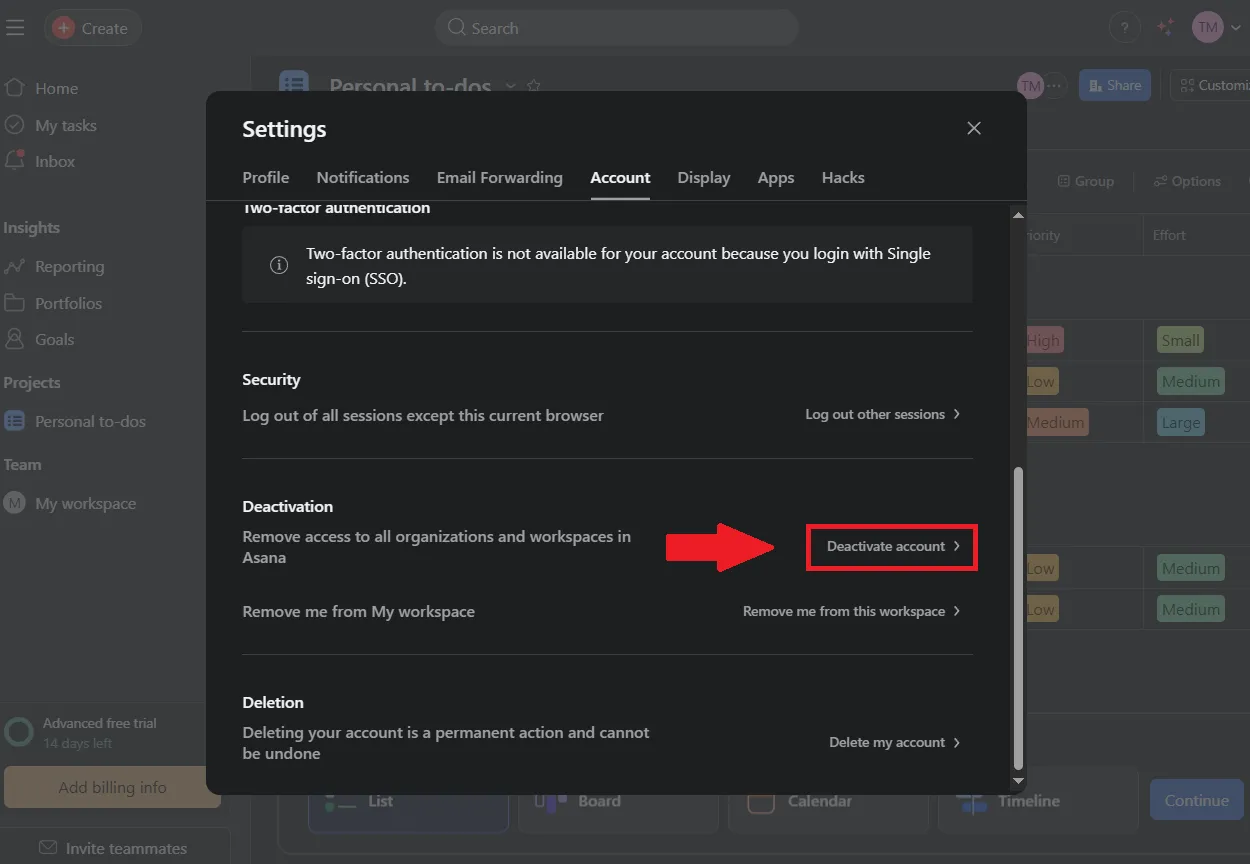
- Scroll down to the Deactivation section. You’ll see the option — “Remove access to all organizations and workspaces in Asana.” Click Deactivate account.
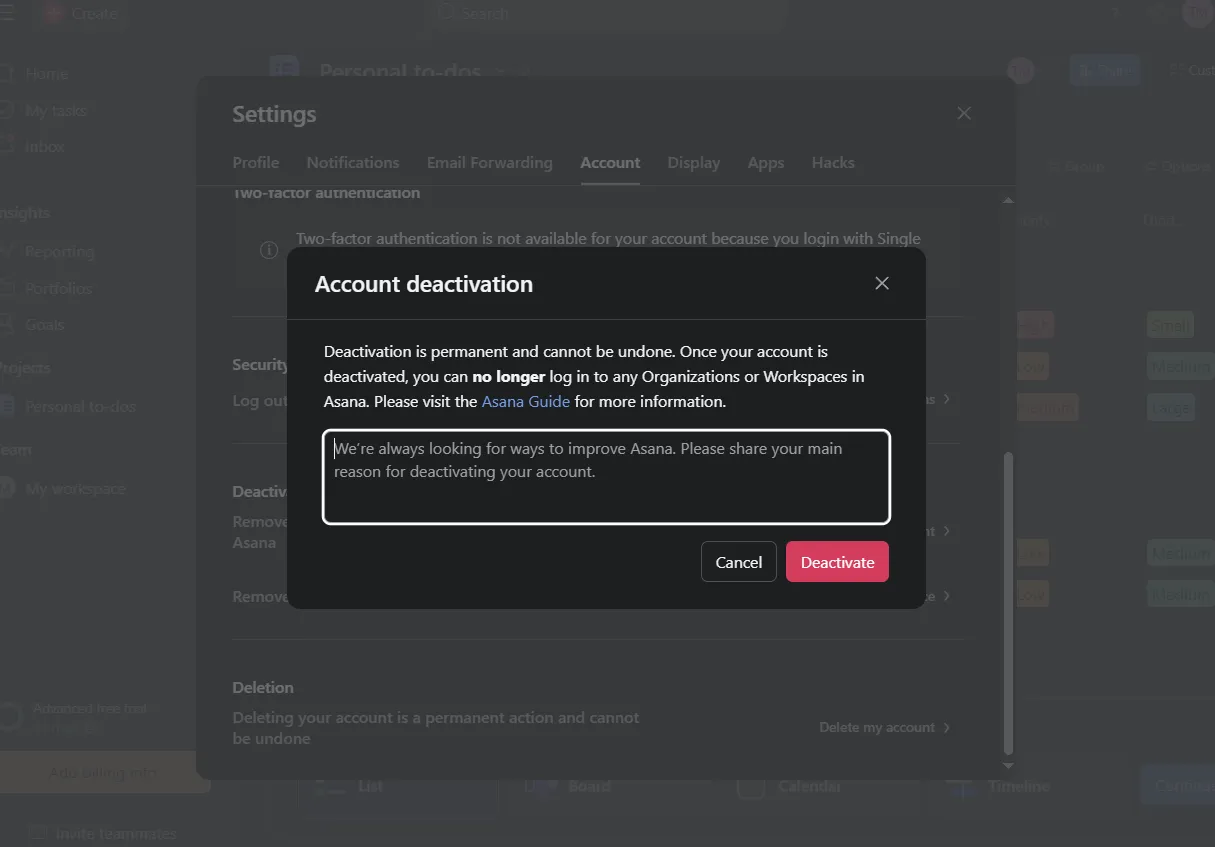
- A confirmation popup will appear warning you that deactivation is permanent and cannot be undone. Once deactivated, you will no longer be able to log in to any organizations or workspaces in Asana. Optionally, share your reason for leaving in the text box provided, then click Deactivate to confirm.
Restore Account Incase Of Change Of Mind
Asana does not offer a way to restore an account once it has been permanently deleted. According to Asana’s official support documentation, deleting your account is an irreversible action. Once you confirm deletion, your personal data and account access are permanently removed from the system.
Conclusion
Deleting your Asana account is a significant step, especially if you’ve used the platform to manage important tasks or collaborate with teams. Whether you’re simplifying your digital life, switching tools, or addressing privacy concerns, it’s important to understand the permanent nature of this action and consider alternatives such as exporting data or leaving specific workspaces. This guide has walked you through everything from preparation to contacting support in sensitive cases. Make sure to review your options carefully before proceeding—because once your account is deleted, recovery is not possible.